Installing the Formcentric Content Hub Adapter
Last updated:
The Formcentric Content Hub Adapter allows you to access your forms from the Formcentric Cloud directly within CoreMedia. After installation, editors can search for forms directly via the CoreMedia Studio library and embed them into pages as HTML fragments.
Activate the plugin
To use the Formcentric Content Hub Adapter, you must first register and activate the plugin in your CoreMedia environment.
- In the file system, navigate to your configuration path:
workspace-configuration/plugins/ - Open the file
plugin-descriptors.json. - Add the descriptor URL of the Formcentric Content Hub Adapter:
(Ersetzen Sie {VERSION} durch die von Ihnen verwendete Adapter-Version).
4. Aktivieren Sie das Plugin gemäß der offiziellen CoreMedia-Dokumentation für den Content Hub.
Sie haben das Plugin erfolgreich registriert und aktiviert.
Configure the plugin
Once the plugin is activated, establish the connection to Formcentric.
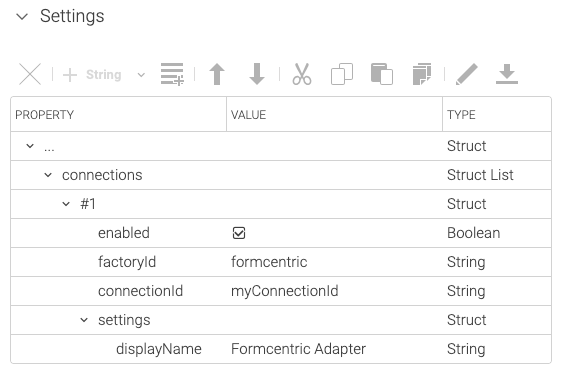
- Create a Settings content item in CoreMedia — either at the site level, globally, or in the user's home folder.
(For details on general Content Hub configuration, please consult the CoreMedia Studio Developer Manual ). - Configure the following parameters:
factoryId: Enter exactlyformcentric.connectionId: Choose an identifier for this connection (e.g.,formcentric-main).displayName(optional): Enter a name to be displayed for the connection in the CoreMedia Studio library.
Required runtime properties
For each configured connectionId, you must provide your Formcentric API client credentials to CoreMedia as runtime properties.
Set up the following two properties for your environment:
- Formcentric API Client ID:
- Formcentric API Client-Secret:
(Replace <configured connectionId> with the Connection ID chosen in the previous step).
Optional runtime properties
Omit script property (omitScript)
By default, the Formcentric embedding script is delivered alongside every form HTML fragment. If you have already embedded the Formcentric script centrally in your website header, you can disable automatic delivery.
Add the following runtime property:
false(default): The script is loaded with every form fragment.true: The script is omitted (requires the script to be present in the website<head>).
Results in CoreMedia Studio
After successful installation and setup, the Formcentric integration will be available in CoreMedia Studio:
- Form Properties: The content area displays the name of the linked form along with the generated XML/HTML data.
- Edit Form: Clicking the Edit form button opens the Formcentric Form Editor directly in a new tab.
- Preview: The side-by-side preview in Studio immediately renders the embedded Formcentric form.
Next steps & troubleshooting
- Studio Usage: To learn how editors use Content Hub in day-to-day work, please consult the CoreMedia Studio User Manual.
- Connection Not Displayed? If the Formcentric connection does not appear in the Studio library, double-check that the Settings content item was created correctly in the Configure the Plugin step and that the
connectionIdmatches your configuration.