Using Formcentric Connect in ContentCreator
Last updated:
With Formcentric Connect for FirstSpirit, you can embed forms from your Formcentric account directly onto your FirstSpirit pages in ContentCreator, without switching between applications. Any changes you make to a form in Formcentric are reflected on your website as soon as the form is published in Formcentric. No republishing in FirstSpirit is required.
Opening Formcentric Connect
Open the FirstSpirit project in which Formcentric Connect is installed.
In the Content Creator, locate the Formcentric icon (3) in the report area on the right-hand side and click it to open the Formcentric Connect report.
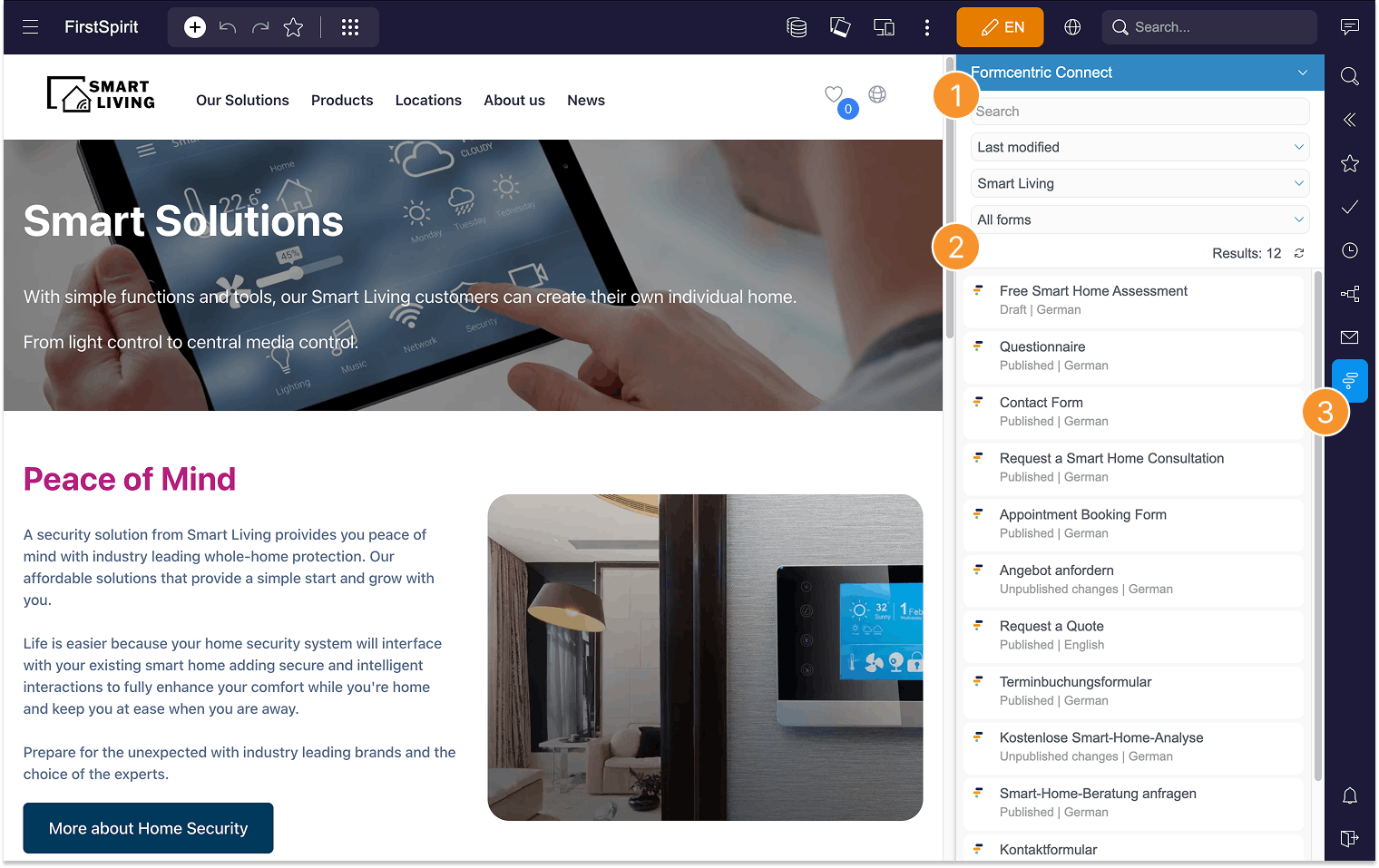
The Formcentric Connect Report
The report displays all forms from your Formcentric account (2). Each form shows its current status and language.
Want to narrow down the list? Use the search field or apply filters in the header area (1). You can sort forms by Last Modified, Name (A–Z), or Name (Z–A), filter by folder, or show only Published Forms, Unpublished Forms, or All Forms.
Hovering over a form displays additional details: status, language, creation and modification date, editor, folder, and embed ID.
Clicking a form in the report opens it directly in the Formcentric editor, where you can make changes.
The arrow icon in the top right of the header area (1) gives you access to the following options:
- Create New Form – Opens Formcentric so you can create a new form.
- Open Form Overview – Takes you to the overview of all your forms in Formcentric.
- Open Help centre – Takes you directly to this Formcentric Help centre.
Embedding a form via Drag-and-Drop
Drag the desired form from the report directly onto the page and drop it in the desired location. The form is embedded at that position.
Embedding a form via paragraph template
Select the Formcentric Connect Form paragraph template on the page. A dialog box opens where you can add one or more forms.
You have two options:
- Drag the desired form from the report directly into the dialog box.
- Click Add. A list of all available forms opens. Use the search field to find the form you want, select it, and confirm with OK. Then click Save.
Publish the page. The form is now embedded and visible to visitors. Make sure the form is also published in Formcentric.
Replacing a form
Each paragraph template can contain only one form at a time.
To replace an existing form, proceed as follows:
- Click the edit icon on the far right of the paragraph template.
The Formcentric Connect Form area opens. - Hover over the existing form and click the minus icon that appears on the right to remove it.
- Then add the new form using the plus icon.
You have successfully replaced the form.