Installing Formcentric Connect
Last updated:
Before you can use Formcentric Connect in FirstSpirit, you need to set it up once. The setup involves steps in both Formcentric and FirstSpirit.
Creating an API Client in Formcentric
To allow FirstSpirit to securely communicate with your Formcentric account, you need to generate API credentials.
- Click your profile picture in the top-right corner and select Admin centre.
- In the left sidebar, navigate to API Clients.
- Click New API Client in the top right corner.
- Enter a descriptive name (e.g., "FirstSpirit") and click Create.
- Copy and save the displayed Client Secret immediately to a secure location. The secret will never be shown again.
You have successfully created an API client. Make a note of the client ID and the client secret. You will need both when configuring Formcentric Connect in FirstSpirit.
Adding your domain in Formcentric
For your forms to load on your FirstSpirit website, your website domain must be registered in Formcentric.
- Click your profile picture in the top right corner and select Admin Center.
- In the left sidebar, navigate to Security.
- Enter your website domain in the New Domain or Subdomain field, for example
www.your-website.com. - Click Add.
You registered a new domain.
Installing the Module in FirstSpirit
Formcentric Connect is provided as a FirstSpirit module (.fsm).
Installing the module
- In the ServerManager, open Server Properties and select Modules.
- Click Install and select the module archive file.
- When asked whether to automatically start the services included in the module, confirm with Yes.
Installing the ContentCreator WebApp
- In the ServerManager, switch to the Web Applications section.
- Add the Formcentric WebEditor to the ContentCreator web application by clicking Add.
- In the selection dialog, choose Formcentric WebEditor and confirm with OK.
- Update the ContentCreator web application on the web server.
Adding the Formcentric Connect Project App to your project
- Open the project configuration of the desired project by double-clicking the project in the project overview.
- In the left menu, select Project Components and click Add.
- In the selection dialog, choose Formcentric Resources and confirm.
- In the configuration, enter the client ID and client secret you noted when creating the API client.
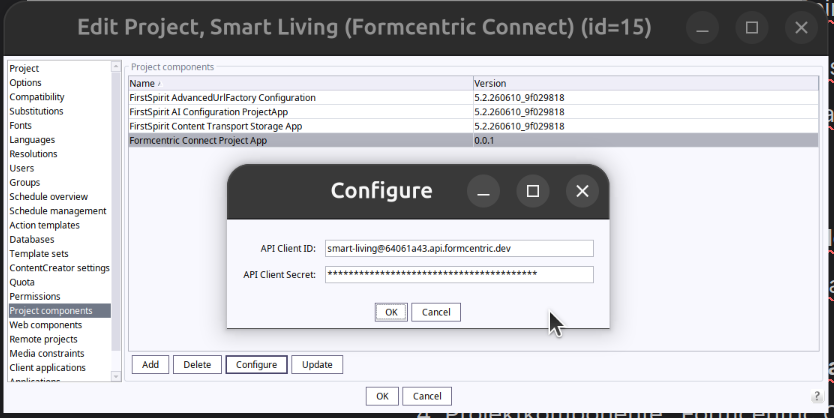
Once the installation is complete, Formcentric Connect is available in your FirstSpirit project. In the Content Creator, the Formcentric icon appears in the report area on the right-hand side. In the SiteArchitect, it appears in the Organize section of the vertical toolbar. Editors can use this icon to embed forms on pages. See also Formcentric Connect im ContentCreator nutzen and Formcentric Connect im SiteArchitect nutzen.
Customising the paragraph template
Formcentric Connect includes a paragraph template that you can customise after installation to meet your requirements. All configuration options described in the FirstSpirit documentation for paragraph templates are available to you.